
How to link straight to registration with ticket(s) pre-selected
You can give people a link that adds a ticket to their cart and takes them to the registration form. They skip the ticket selector on the event page.
Use it for "Register now" buttons on your own pages, in emails, or on social media.
What the link does
- It adds the ticket you chose to the visitor's cart.
- It sends the visitor to the registration checkout page.
- It holds the ticket for the visitor, as it does when they click Register Now on the event page.
Before you start
You need three numbers from your site:
- Event ID: the number in the address bar when you edit the event in the WordPress admin. It looks like
post=177. -
Ticket ID: the ID of the ticket you want to pre-select. To find it, edit the event and scroll to Available Tickets. The small number in the top-left corner of the ticket card is the ticket ID. Use the number on the ticket card, not the one on the date card.
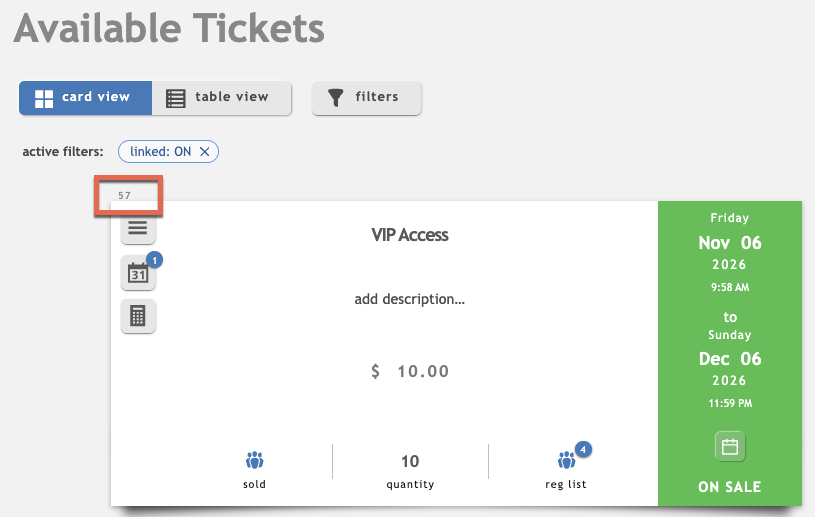
- Quantity: how many tickets to add, for example
1.
These numbers are different on every site. A link made on a test site will not work on your live site.
The link
Replace EVENT_ID , TICKET_ID and the quantity (1 ):
https://yoursite.com/events/your-event/?ee=process_ticket_selections&tkt-slctr-event-id=EVENT_ID&tkt-slctr-ticket-id-EVENT_ID%5B%5D=TICKET_ID&tkt-slctr-qty-EVENT_ID%5BTICKET_ID%5D=1
EVENT_IDappears in three places.TICKET_IDappears in two places.%5B%5Dand%5B%5Dare the characters[]and[ ]in encoded form. Keep them as they are. They stop email programs and page builders from breaking the link.
Example
Event ID 177 , ticket ID 45 , quantity 1 :
https://yoursite.com/events/your-event/?ee=process_ticket_selections&tkt-slctr-event-id=177&tkt-slctr-ticket-id-177%5B%5D=45&tkt-slctr-qty-177%5B45%5D=1
As a button
<a class="button" href="https://yoursite.com/events/your-event/?ee=process_ticket_selections&tkt-slctr-event-id=177&tkt-slctr-ticket-id-177%5B%5D=45&tkt-slctr-qty-177%5B45%5D=1">Register now</a>
Test the link
- Open the link in a private (incognito) browser window.
- Check that you land on the registration checkout page.
- Check that the cart shows the right ticket and quantity.
If it does not work
| What you see | Likely cause | What to do |
|---|---|---|
| You are sent back to the event page with "no available spaces left" | The ticket or date is sold out, or the seats are held by other visitors | Check the ticket quantity and the date's capacity. Held seats are released after a short time |
| You are sent back to the event page with no message | The event ID or ticket ID is wrong | Check both numbers. They must belong to the same event |
| You are sent to the home page | The visitor was treated as an automated program (a bot) | Test in a normal browser. Some security tools and link checkers get this result |
| You are sent to a different page, or to a "ticket selection received" page | A bot-protection feature on your site blocked the request | Contact support. See the note below |
| The link looks broken in an email | The email program changed the [ and ] characters |
Use the encoded link (%5B and %5D ) from this page |
Things to know
- Each time someone opens the link, a seat is held for them. Do not use the link anywhere that is opened by software, such as link checkers, email scanners or link previews. These can hold seats that nobody will use.
- This page covers one ticket type per link. Make one link for each ticket type you want to offer.
- If your site uses extra bot protection, such as reCAPTCHA, a plain link may be blocked. Test the link on your live site before you share it.
- The ticket price, any ticket rules (such as minimum and maximum quantity) and ticket dates still apply.
Need help?
Contact Event Espresso support. Tell us your event ID, your ticket ID and the exact link you used. Tell us what you saw when you opened it.