
Processing fees Add-on
Add a configurable percentage or fixed processing fee to any Event Espresso payment
method. The fee is applied to the transaction at checkout and shown to the attendee as its
own clearly labelled line on the order summary. Use it to recover payment gateway costs or
apply a service charge.
Each payment method can charge a percentage fee, a fixed fee, or both — and each fee has
its own customer-facing name.
- Requirements: Event Espresso core 5.0.60 or higher, and PHP 7.4 or higher.
- License: an active Processing Fees license is required to configure and charge fees(see License requirement).
Contents
- Install the Event Espresso Processing Fees Add-on
- Tutorial: add your first processing fee
- How-to guides
- Reference
- Explanation: how it works
Install the Event Espresso Processing Fees Add-on
Download the Event Espresso Processing Fees add-on from your account.
Install and activate the add-on as any other plugin.
Tutorial: add your first processing fee
This lesson walks you through adding a simple percentage fee to one payment method and
confirming it appears at checkout. It assumes Event Espresso is installed and you have at
least one active payment method (for example, Invoice or PayPal).
By the end you will have charged a 2.5% fee on a test registration.
Step 1 — Open a payment method's settings
- In wp-admin, go to Event Espresso → Payment Methods.
- Click the tab for the payment method you want to add a fee to.
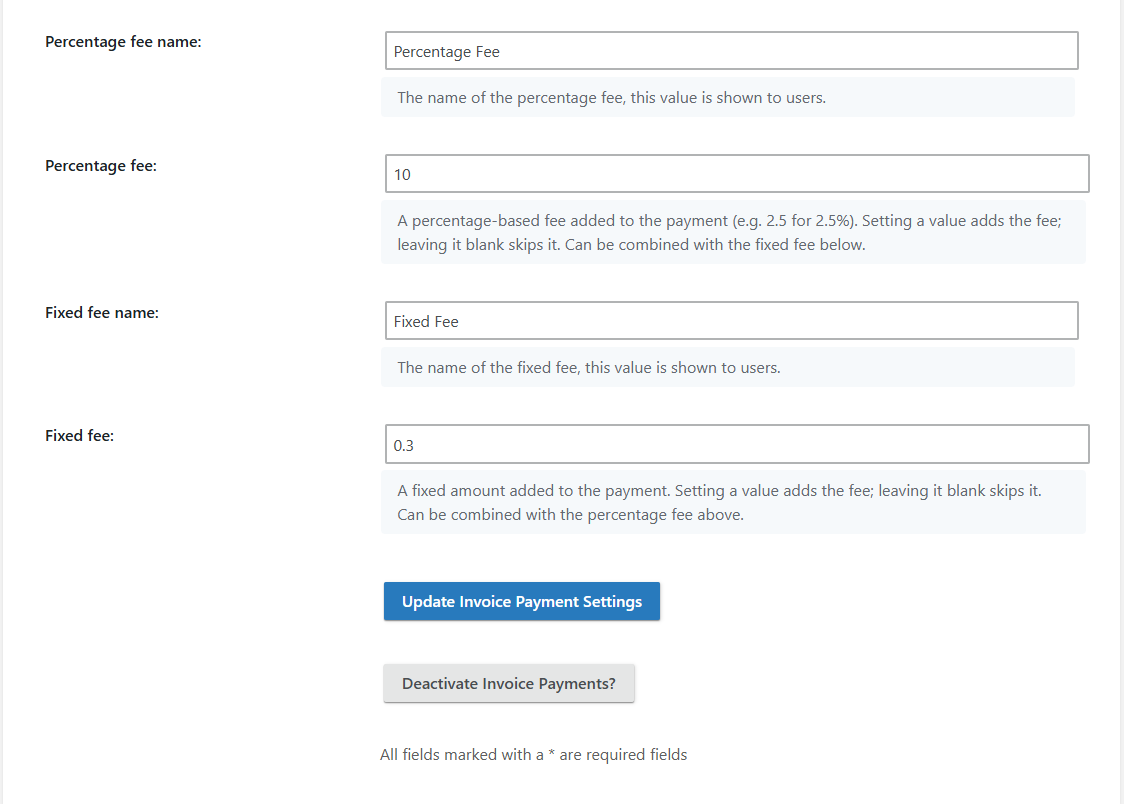
The Processing Fees add-on adds four extra fields to every payment method's settings form:
Percentage fee name, Percentage fee, Fixed fee name, and Fixed fee.
Step 2 — Enter a percentage fee
- In the Percentage fee field, enter
2.5. This means 2.5%. - Leave the Percentage fee name as its default (Percentage Fee) for now.
- Leave both Fixed fee fields blank — a blank field simply skips that fee.
- Click Update / Save to store the settings.
Step 3 — See the fee at checkout
- Open your event's registration page in a new browser tab (or a private window).
- Register for a ticket and continue to the Payment Options step.
- Select the payment method you just configured.
The order summary now shows a Percentage Fee line equal to 2.5% of the ticket subtotal,
and the grand total updates to include it.
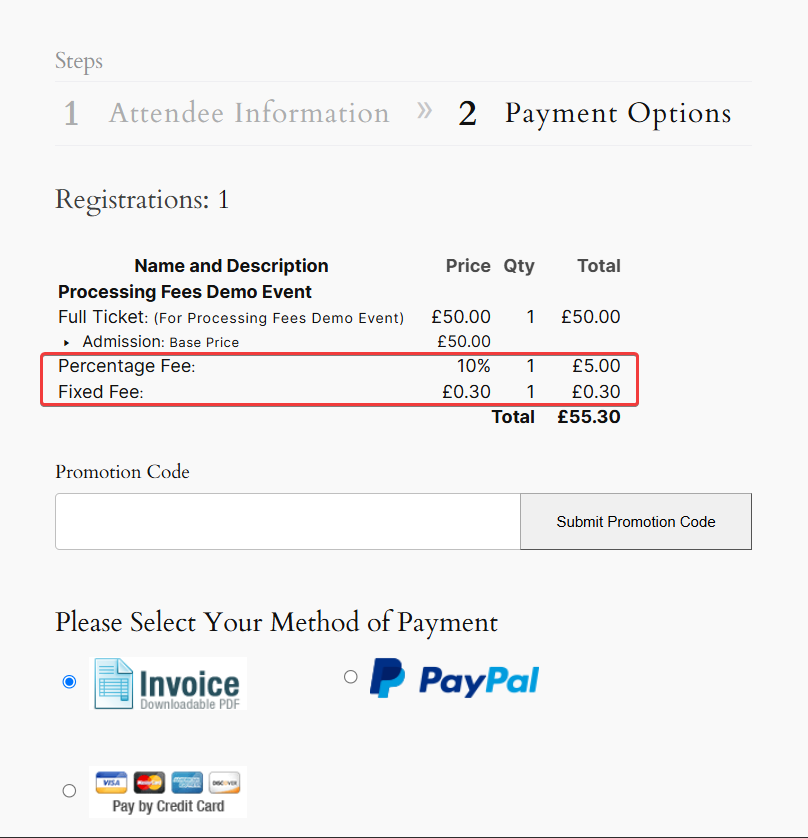
*Example: a payment method configured with a 10% percentage fee and a £0.30 fixed fee adds
both as their own lines, taking a £50.00 ticket to a £55.30 total.*
Step 4 — Confirm it recalculates on a switch
If you have a second payment method, select it. The checkout reloads and the fee updates to
match the newly selected method (or disappears if that method has no fee configured).
You've now added, previewed, and verified a processing fee. The
How-to guides below cover fixed fees, combining fees, renaming them, and
removing them.
How-to guides
Short, task-focused recipes. Each assumes you're on a payment method's settings page under
Event Espresso → Payment Methods.
Charge a percentage-based fee
- Enter the percentage in the Percentage fee field (for example
3for 3%, or2.5for 2.5%). - Optionally set the Percentage fee name shown to customers.
- Save.
The percentage is charged on the ticket subtotal for that transaction.
Charge a fixed fee
- Enter the flat amount in the Fixed fee field (for example
1.00), in your site'scurrency. - Optionally set the Fixed fee name shown to customers.
- Save.
Charge both a percentage and a fixed fee
- Enter a value in both the Percentage fee and Fixed fee fields.
- Optionally name each one independently.
- Save.
Both fees appear as separate lines at checkout. The percentage is charged on the ticket
subtotal only — it is not charged on top of the fixed fee (see
How the fee amounts are calculated).
Rename the fee your customers see
Each fee has its own name field:
- Percentage fee name — labels the percentage line (default: Percentage Fee).
- Fixed fee name — labels the fixed line (default: Fixed Fee).
Enter a name that makes sense to your attendees (for example Card Processing Fee or
Service Charge) and save. The name appears on the order summary and on the transaction.
Remove a fee
- Clear the value from the Percentage fee and/or Fixed fee field, leaving it blank.
- Save.
New checkouts for that payment method will no longer add the fee. Fees already charged on
existing transactions are unaffected.
Apply different fees to different payment methods
Each payment method carries its own fee settings. Configure each one separately — for
example a percentage fee on a credit-card method and no fee on Invoice. At checkout the fee
follows whichever method the attendee selects.
Reference
Configuration fields
Added to every payment method's settings form (Event Espresso → Payment Methods →
payment method):
| Field | Type | Purpose | Default |
|---|---|---|---|
| Percentage fee name | Text | Customer-facing label for the percentage fee | Percentage Fee |
| Percentage fee | Number | Percentage added to the payment, e.g. 2.5 for 2.5%. Blank = no percentage fee |
(blank) |
| Fixed fee name | Text | Customer-facing label for the fixed fee | Fixed Fee |
| Fixed fee | Number | Flat amount added to the payment, in your currency. Blank = no fixed fee | (blank) |
Accepted values: both fee fields accept 0 or any positive number (step 0.01 ). Blank,
zero, non-numeric, and negative values are ignored — that fee is simply not charged. A
negative value can never turn a fee into a discount.
Where the fee appears
- Payment Options step of Single Page Checkout, as its own line on the order summary.
- The transaction total, including any taxes, recalculated to include the fee.
- The attendee's transaction record, receipt, and any messages that list line items.
Behaviour at checkout
- The fee is (re)applied every time the Payment Options form is generated, including when theattendee switches payment methods.
- Switching payment methods reloads the checkout so the updated total is shown.
- If the selected payment method has no fee configured, no fee line is added and anypreviously added fee line is removed.
License requirement
An active Processing Fees license is required to configure and charge fees. If the license
lapses, the fee fields stop appearing and new checkouts stop adding fees — but **fees already
charged on existing transactions stay visible and total correctly**, and nothing about past
orders needs to be repaired. To restore configuring and charging, add or renew a valid key
under Event Espresso → License Keys for this add-on.
Explanation: how it works
How the fee amounts are calculated
When both fees are set, they are charged so that they never compound:
- The percentage fee is calculated against the pre-tax ticket subtotal — the sameplacement core uses for gateway processing fees. It is added inside that subtotal andsorted to run after every event subtotal.
- The fixed fee is added after the percentage fee in the ordering.
Because a percentage line item is computed from the running total of the items ordered
before it, ordering the fixed fee after the percentage fee keeps the fixed amount out of
the percentage's base. In other words, you are never charged a percentage on top of the
fixed fee. Taxes are recalculated across the whole total once the fees are in place.
Every time the Payment Options form is generated, the add-on first deletes any existing fee
rows (including a legacy single-fee row left over from an older version) and then re-adds the
fees for the currently selected payment method. This keeps the total correct after a page
refresh or a payment-method change, and avoids stacking duplicate fees.
Why checkout reloads when you switch payment methods
Normally, switching payment methods during checkout updates part of the page over AJAX
without a full reload. Because the processing fee — and therefore the grand total — can
differ between methods, the add-on forces a full checkout reload after each switch. This is a
deliberately simple approach: rather than patching the order summary in place, it re-renders
the whole checkout so the displayed total always matches the newly selected method.
Copyright Event Espresso. Licensed under the GNU General Public License v3.0.
Event Espresso — Processing Fees