
Schedules Add-on (alpha)
This plugin is available as an Alpha release with no guarantee, and we kindly request your feedback. You can download 0.0.2 here.
Prevent Overlapping Schedules
If your event offers multiple ticket options for different dates or times, you can prevent attendees from selecting ticket combinations that overlap.
When this setting is enabled, Event Espresso will automatically disable ticket options that conflict with the attendee’s current selection. This helps prevent one person from registering for sessions that happen at the same time.
Example
If an attendee selects a ticket for 11:00 AM to 12:00 PM, and another ticket is scheduled for 11:30 AM to 12:30 PM, the second option will be disabled until the attendee removes the first selection.
How to enable it
- Edit your event.
- Open Event Registration Options.
-
Enable Prevent overlapping schedules.
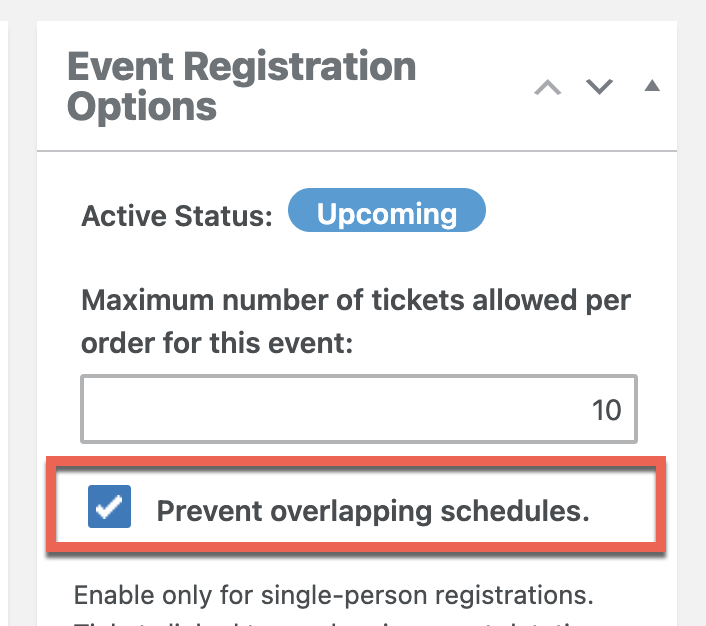
- Save the event.
How it works
- Event Espresso compares the schedules attached to each ticket option.
- If a selected ticket overlaps with another ticket’s schedule, the conflicting ticket option is disabled.
- A notice appears above the ticket selector to explain which options are unavailable.
- If the attendee changes their selection, any previously blocked options may become available again.
Important behavior
- This feature is intended for single-person registrations.
- A scheduled ticket can only be selected once.
- If a ticket is connected to multiple datetimes, Event Espresso treats that ticket as covering all of its assigned times when checking for conflicts.
- Datetimes that are deleted or trashed are not included in conflict checks.
-
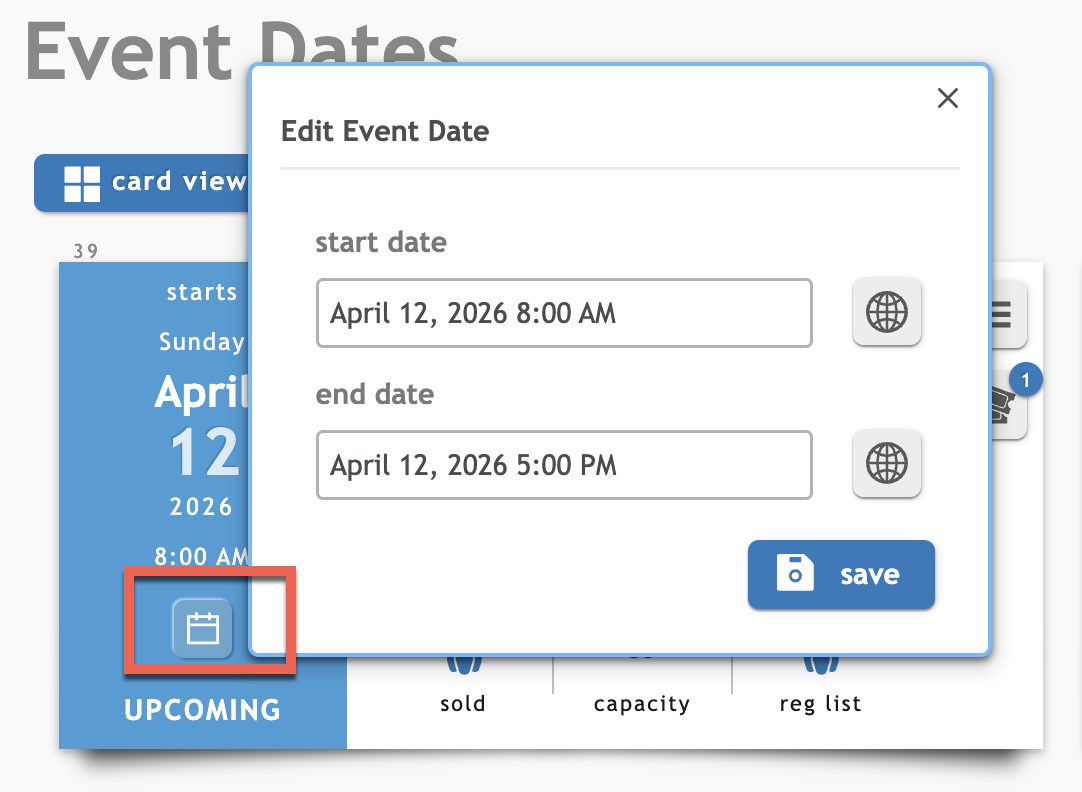
Important! It is very important you have each datetime start and end time configured correctly so the system knows how to compare the dates assigned to each ticket against the other tickets assigned to the associated datetimes.
What attendees will see
When a conflict exists, attendees will see a message like this:

A list of the conflicting ticket options will appear below that message.
Best practices
- Make sure each ticket is linked to the correct event datetime(s).
- Use clear ticket names so attendees can easily understand which option is causing the conflict.
- If you offer back-to-back sessions, confirm your datetime ranges are entered correctly.