
Automation Webhoooks Add-on
The Automation / Webhooks add-on sends notifications from your Event Espresso site to other applications and services whenever something important happens — a new registration, a successful payment, an attendee check-in, and more. Each notification is an outbound webhook: a small message delivered to a URL you choose, so tools like Zapier, Make, CRMs, or your own custom integrations can react automatically.
Need to Buy a Support License for the Webhooks Add-on?
The Webhooks add-on is included with the All Access pass or can be used with a Core license and purchased à la carte separately to be used with a Core license.
Requirements
- Event Espresso 5.0.58 or newer
- WordPress 5.2 or newer
- PHP 7.4 or newer
- A valid support license for the Automation / Webhooks add-on (entered under Event Espresso → License Keys)
Installation
- Download the add-on from your account page on eventespresso.com.
- In your WordPress admin, go to Plugins → Add New → Upload Plugin and upload the zip file.
- Activate the plugin through the Plugins screen.
- Go to Event Espresso → License Keys and enter your license key for Automation / Webhooks.
Once activated, a new Webhooks page appears in the Event Espresso admin menu (under the Add-ons group).
Key Concepts
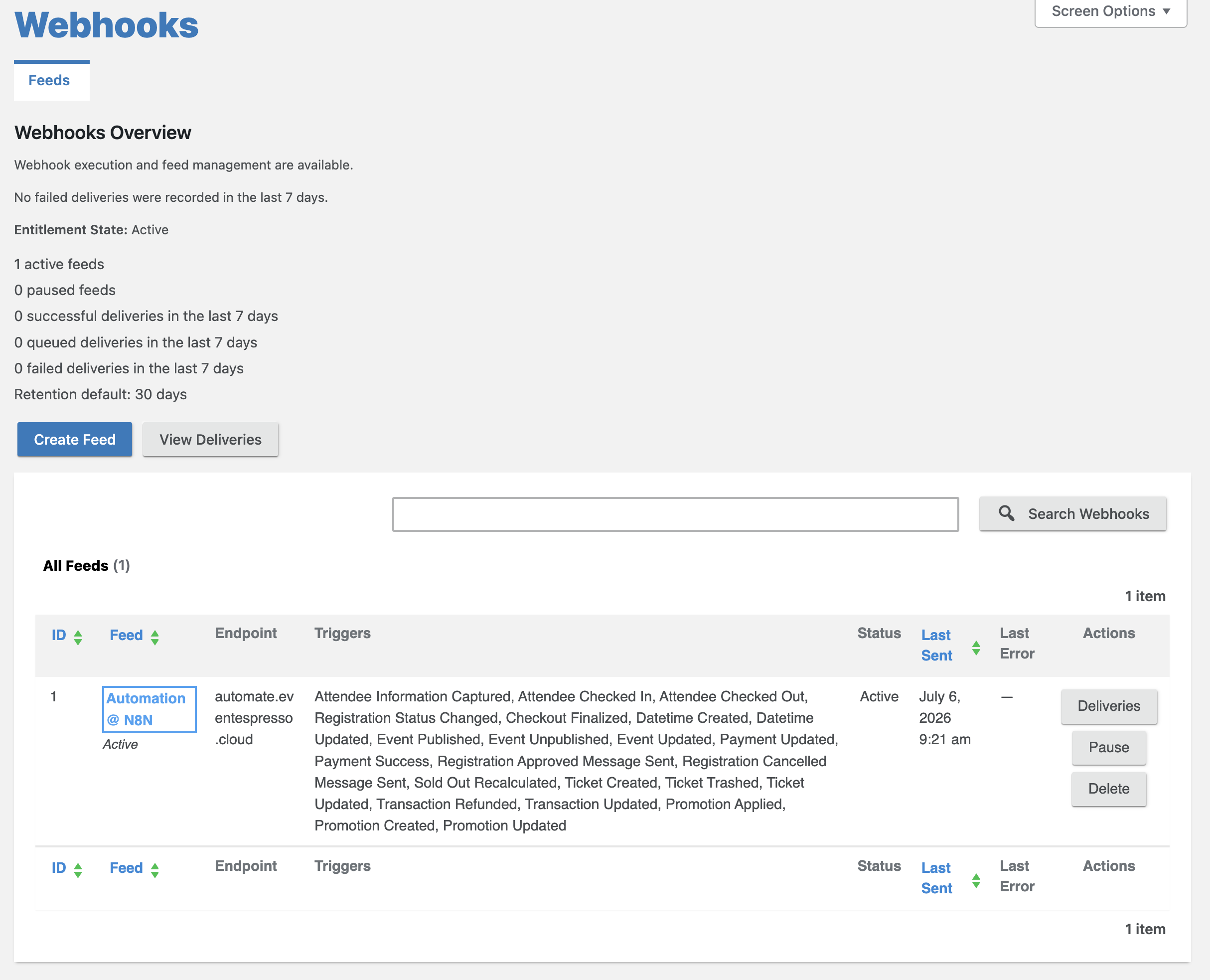
A feed is a saved webhook destination: an endpoint URL plus the list of triggers you want sent to it. You can create as many feeds as you need — for example, one feed that sends registration events to Zapier and another that sends payment events to your accounting system.
A trigger is the Event Espresso activity that causes a webhook to be sent (for example, "Registration Status Changed" or "Payment Success").
A delivery is one webhook message sent (or attempted) to a feed's endpoint. Every delivery is recorded in a log you can review.
Creating a Webhook Feed
- Go to Event Espresso → Webhooks.
- Click Create Feed.
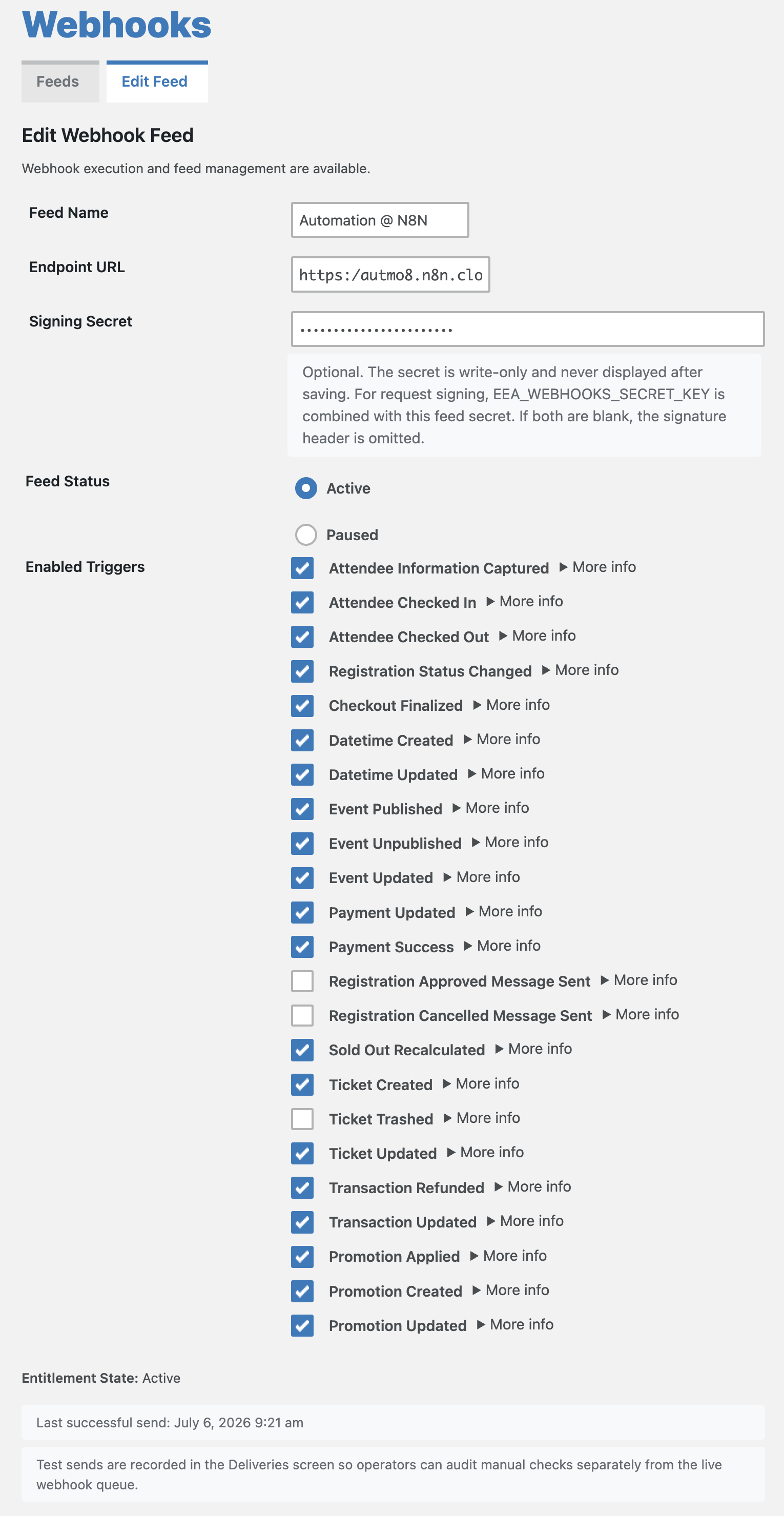
- Fill in the form:
- Feed Name — a label to help you recognize this feed in the list (required).
- Endpoint URL — the full
https://URL that should receive the webhooks (required). This is usually provided by the service you're connecting to (for example, a Zapier "Catch Hook" URL). - Signing Secret — optional but recommended. If set, every webhook request includes a cryptographic signature the receiving system can use to verify the message really came from your site. The secret is write-only: after saving, it is never displayed again. Leave the field blank on later edits to keep the current secret, or tick Remove the current signing secret to clear it.
- Feed Status — Active feeds send webhooks; Paused feeds hold them until resumed.
- Enabled Triggers — tick each trigger this feed should receive (at least one is required). Click More info next to any trigger for a description of when it fires and what the payload includes.
- Click Save Feed.
After saving, you can return to the Edit Feed screen at any time to change the endpoint, triggers, or status.
Available Triggers
| Trigger | Sends when… |
|---|---|
| Attendee Information Captured | Attendee information is captured during checkout |
| Attendee Checked In | A registration is checked in |
| Attendee Checked Out | A checked-in registration is checked out |
| Registration Status Changed | A registration's status changes (approved, cancelled, etc.) |
| Checkout Finalized | The checkout finalize step completes |
| Datetime Created | A new event datetime is created in the event editor |
| Datetime Updated | An existing event datetime is updated |
| Event Published | An event moves into a live, publishable status |
| Event Unpublished | A live event leaves a publishable status |
| Event Updated | An event is updated without a publish/unpublish change |
| Payment Updated | A payment updates a transaction |
| Payment Success | A payment is successfully approved |
| Registration Approved Message Sent | A registration-approved notification email is actually sent |
| Registration Cancelled Message Sent | A registration-cancelled notification email is actually sent |
| Sold Out Recalculated | An event's sold-out status is recalculated |
| Ticket Created | A new ticket is created in the event editor |
| Ticket Updated | An existing ticket is updated |
| Ticket Trashed | A ticket is removed from active use |
| Transaction Updated | A transaction is recalculated after checkout or payment activity |
| Transaction Refunded | A refund is recorded against a transaction |
| Promotion Applied* | A promotion or discount code is applied to a transaction |
| Promotion Created* | A new promotion or discount code is created |
| Promotion Updated* | An existing promotion or discount code is updated |
| Ticket Notice Message Sent** | The Ticketing add-on sends a ticket notice email |
* Requires the Promotions add-on.
** Only listed when the Ticketing add-on is active.
How Delivery Works
Webhooks are queued and sent in the background rather than during the visitor's page load, so webhook activity never slows down your checkout.
- Queued deliveries are processed on a recurring schedule, every 15 minutes (using WP-Cron). Expect deliveries to be near-real-time, but allow up to about 15 minutes.
- Each request must complete within 15 seconds.
- If the receiving server fails (a network error, a timeout, or an HTTP 408, 429, or 5xx response), delivery is retried automatically up to 5 times, with an increasing delay between attempts (roughly 5, 10, 20, 40, and 60 minutes). If the receiver asks for a specific wait via a
Retry-Afterheader, that is honored (up to 1 hour). - If the receiver responds with HTTP 401 or 403 (authentication rejected), the delivery is marked failed immediately and is not retried — check the endpoint's authentication requirements.
- For security, endpoint URLs must use
http/httpsand cannot point at private, internal, or loopback addresses.
Note: Delivery relies on WP-Cron. On very low-traffic sites, or sites where WP-Cron is disabled, deliveries may be delayed until cron runs. If timely delivery matters, consider configuring a real server cron job to trigger WP-Cron regularly.
Testing a Feed
On the Edit Feed screen, click Send Test Webhook. This immediately sends a sample "test ping" message to the feed's endpoint — using the exact same format as real webhooks — and shows you the result right away. Test sends are also recorded on the Deliveries screen so you can audit them later.
Monitoring Deliveries
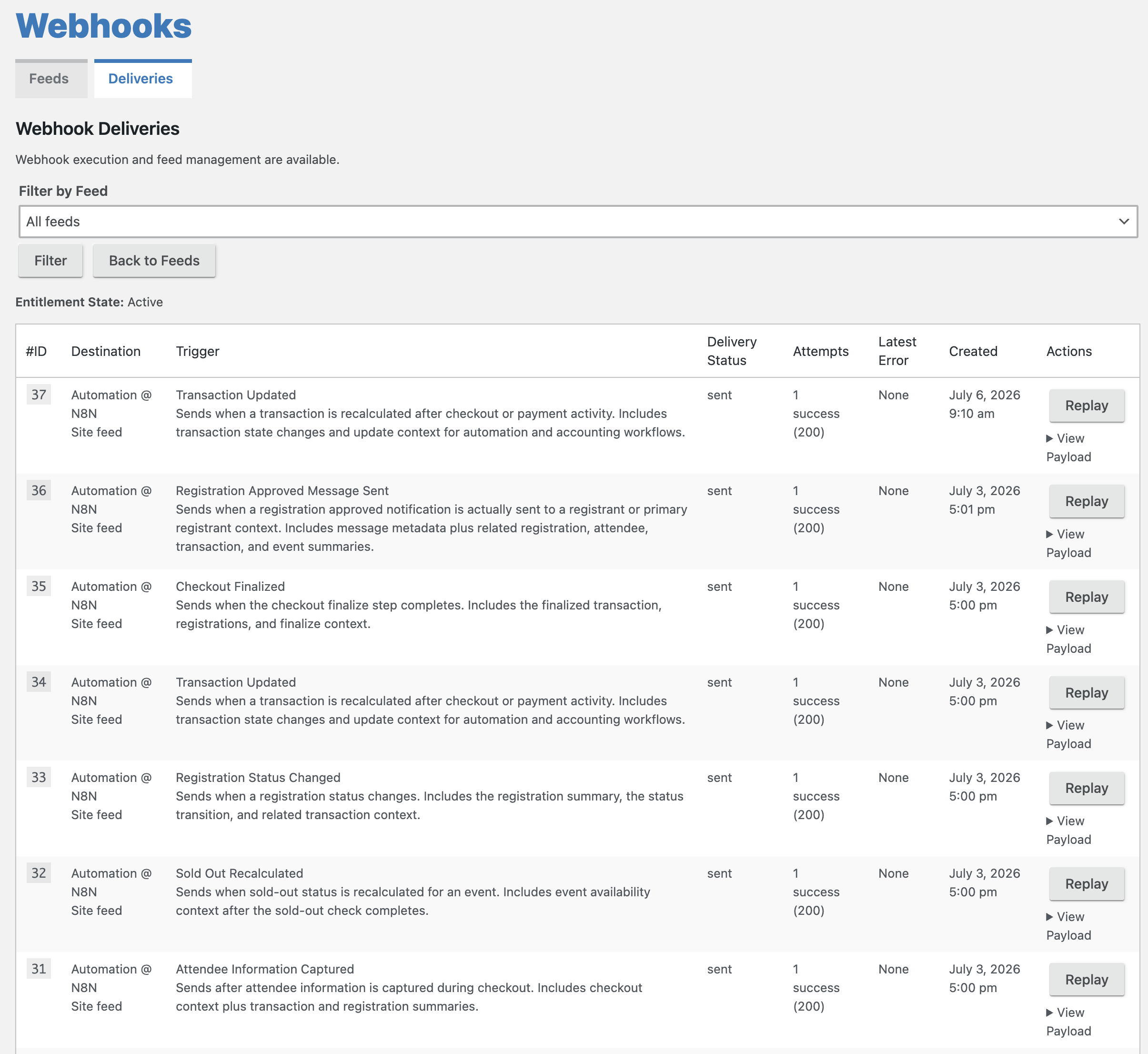
Click Deliveries (from the Webhooks overview, or the Deliveries button next to any feed) to see the delivery log. For each delivery you can see the destination, trigger, current status, number of attempts, the latest error (if any), and when it was created. Click View Payload on any row to inspect the exact JSON that was (or will be) sent.
Common delivery statuses:
- pending — queued, waiting for the next delivery run
- sending — currently being delivered
- sent — delivered successfully
- retryable_failure — the last attempt failed; another attempt is scheduled
- final_failure — all retry attempts were used without success
- auth_rejected — the receiver returned 401/403; delivery will not be retried
- paused — held because the feed is paused
- entitlement_paused — held because the add-on's license check is currently blocking delivery
Replaying a Delivery
Click Replay on any logged delivery to queue it to be sent again with its original payload. This is useful after you've fixed a problem on the receiving end. Replays go through the normal delivery queue.
Delivery History Retention
Delivery history (events, deliveries, and attempt details) is kept for 30 days by default, then cleaned up automatically. Replaying a delivery is only possible while its record is still within the retention window.
Pausing, Resuming, and Deleting Feeds
From the Feeds list, use the action buttons on each row:
- Pause stops new webhooks from being sent for that feed (activity is held, not lost, subject to retention).
- Resume reactivates a paused feed.
- Delete removes the feed entirely.
Overview Panel
The top of the Webhooks page shows a health summary: how many feeds are active or paused, and counts of successful, queued, and failed deliveries over the last several days. If five or more deliveries have failed recently, an admin notice is displayed so you can investigate.
For Developers: Receiving and Verifying Webhooks
Every webhook is an HTTP POST with a JSON body (Content-Type: application/json; charset=utf-8 ) and these headers:
| Header | Meaning |
|---|---|
X-EE-Webhook-Request-Id |
Unique ID for this delivery attempt |
X-EE-Webhook-Schema |
Payload schema version (currently v1 ) |
X-EE-Webhook-Timestamp |
When the request was sent (ISO-8601, UTC) |
X-EE-Webhook-Trigger |
The trigger identifier (e.g. registration_status_changed ) |
X-EE-Webhook-Signature |
Request signature (only when a signing secret is configured) |
Every payload uses the same envelope:
{
  "schema_version": "v1",
  "trigger": "registration_status_changed",
  "object_type": "registration",
  "action": "updated",
  "occurred_at_gmt": "2026-07-16T18:00:00+00:00",
  "site":   { "blog_id": 1, "home_url": "https://example.com", "site_name": "…" },
  "feed":   { "id": 3, "name": "My Zapier Feed", "scope": "site" },
  "source": { "type": "registration", "id": 123 },
  "data":   { /* trigger-specific details */ }
}
Example: Registration Status Changed (with custom questions)
A registration moving from pending payment (RPP ) to approved (RAP ) after a successful payment:
{
  "schema_version": "v1",
  "trigger": "registration_status_changed",
  "object_type": "registration",
  "action": "status_changed",
  "occurred_at_gmt": "2026-07-17T16:42:15+00:00",
  "site": {
    "blog_id": 1,
    "network_id": 1,
    "home_url": "https://example.com/",
    "site_url": "https://example.com/",
    "site_name": "Example Events"
  },
  "feed": { "id": 3, "name": "Zapier – Registrations", "scope": "site" },
  "source": { "type": "registration", "id": 456 },
  "data": {
    "registration": {
      "id": 456,
      "code": "456-9f8a2c1e7b3d4",
      "status": "RAP",
      "count": 1,
      "group_size": 1,
      "attendee": {
        "id": 789,
        "first_name": "Maria",
        "last_name": "Garcia",
        "full_name": "Maria Garcia",
        "email": "maria@acme.example",
        "phone": "555-0142",
        "address": "123 Main Street",
        "address2": "",
        "city": "Salt Lake City",
        "state": "Utah",
        "zip": "84101",
        "country": "United States",
        "country_iso": "US"
      },
      "event": {
        "id": 123,
        "name": "Summer Tech Conference 2026",
        "status": "publish",
        "description": "Two days of talks and workshops.",
        "spaces_remaining": 42
      },
      "ticket": {
        "id": 55,
        "name": "General Admission",
        "description": "",
        "status": "TKO",
        "price": 95,
        "quantity": 200,
        "sold": 158,
        "remaining": 42,
        "min": 0,
        "max": null,
        "is_default": false,
        "is_deleted": false,
        "start_gmt": "2026-05-01T06:00:00+00:00",
        "end_gmt": "2026-07-24T14:00:00+00:00"
      },
      "datetimes": [
        {
          "id": 88,
          "name": "Day 1",
          "description": "",
          "start_gmt": "2026-07-24T15:00:00+00:00",
          "end_gmt": "2026-07-24T23:00:00+00:00",
          "capacity": 200,
          "sold": 158,
          "reserved": 0,
          "spaces_remaining": 42,
          "sold_out": false,
          "is_primary": true,
          "order": 1
        }
      ],
      "answers": [
        {
          "question": "First Name",
          "question_id": 1,
          "question_admin_label": "",
          "question_label": "First Name",
          "question_type": "text",
          "system_id": "fname",
          "required": true,
          "order": 1,
          "value": "Maria",
          "display_value": "Maria"
        },
        {
          "question": "Email Address",
          "question_id": 3,
          "question_admin_label": "",
          "question_label": "Email Address",
          "question_type": "email",
          "system_id": "email",
          "required": true,
          "order": 3,
          "value": "maria@acme.example",
          "display_value": "maria@acme.example"
        },
        {
          "question": "Company name?",
          "question_id": 12,
          "question_admin_label": "company",
          "question_label": "Company name?",
          "question_type": "text",
          "system_id": "",
          "required": false,
          "order": 8,
          "value": "Acme Corporation",
          "display_value": "Acme Corporation"
        },
        {
          "question": "T-Shirt Size",
          "question_id": 13,
          "question_admin_label": "tshirt-size",
          "question_label": "T-Shirt Size",
          "question_type": "dropdown",
          "system_id": "",
          "required": true,
          "order": 9,
          "value": "Large",
          "display_value": "Large"
        },
        {
          "question": "How did you hear about us?",
          "question_id": 14,
          "question_admin_label": "referral-source",
          "question_label": "How did you hear about us?",
          "question_type": "checkbox",
          "system_id": "",
          "required": false,
          "order": 10,
          "value": ["Social Media", "A friend or colleague"],
          "display_value": "Social Media, A friend or colleague"
        }
      ]
    },
    "status_transition": {
      "from": "RPP",
      "to": "RAP",
      "context": "EventEspresso\\core\\domain\\entities\\contexts\\Context"
    },
    "transaction": {
      "id": 321,
      "status": "TCM",
      "timestamp": "2026-07-17T16:38:02+00:00",
      "total": 95,
      "paid": 95,
      "remaining": 0,
      "primary_registration_id": 456,
      "primary_attendee": { "id": 789, "first_name": "Maria", "last_name": "Garcia", "full_name": "Maria Garcia", "email": "maria@acme.example", "phone": "555-0142", "address": "123 Main Street", "address2": "", "city": "Salt Lake City", "state": "Utah", "zip": "84101", "country": "United States", "country_iso": "US" }
    }
  }
}
Example: Payment Success (PayPal)
The gateway field contains the payment method's configured name (e.g. PayPal Commerce ), and transaction_reference is the gateway's transaction/capture ID. Note that real payloads repeat the full registration summaries (including answers ) both at data.registrations and inside data.transaction.registrations ; they are shortened here for readability.
{
  "schema_version": "v1",
  "trigger": "payment_success",
  "object_type": "payment",
  "action": "succeeded",
  "occurred_at_gmt": "2026-07-17T16:42:12+00:00",
  "site": { "blog_id": 1, "network_id": 1, "home_url": "https://example.com/", "site_url": "https://example.com/", "site_name": "Example Events" },
  "feed": { "id": 4, "name": "Accounting Sync", "scope": "site" },
  "source": { "type": "payment", "id": 654 },
  "data": {
    "transaction": {
      "id": 321,
      "status": "TCM",
      "timestamp": "2026-07-17T16:38:02+00:00",
      "total": 95,
      "paid": 95,
      "remaining": 0,
      "primary_registration_id": 456,
      "primary_attendee": { "id": 789, "full_name": "Maria Garcia", "email": "maria@acme.example" },
      "registrations": [ { "id": 456, "code": "456-9f8a2c1e7b3d4", "status": "RAP" } ]
    },
    "payment": {
      "id": 654,
      "status": "PAP",
      "amount": 95,
      "currency": "USD",
      "source": "CART",
      "gateway": "PayPal Commerce",
      "timestamp": "2026-07-17 16:42:10",
      "transaction_reference": "8XY12345AB123456C",
      "is_refund": false
    },
    "registrations": [ { "id": 456, "code": "456-9f8a2c1e7b3d4", "status": "RAP" } ]
  }
}
Example: Transaction Updated (after the PayPal payment)
Includes the transaction's payment history plus an update_context describing what caused the update. Registration summaries shortened as above.
{
  "schema_version": "v1",
  "trigger": "transaction_updated",
  "object_type": "transaction",
  "action": "updated",
  "occurred_at_gmt": "2026-07-17T16:42:14+00:00",
  "site": { "blog_id": 1, "network_id": 1, "home_url": "https://example.com/", "site_url": "https://example.com/", "site_name": "Example Events" },
  "feed": { "id": 4, "name": "Accounting Sync", "scope": "site" },
  "source": { "type": "transaction", "id": 321 },
  "data": {
    "transaction": {
      "id": 321,
      "status": "TCM",
      "timestamp": "2026-07-17T16:38:02+00:00",
      "total": 95,
      "paid": 95,
      "remaining": 0,
      "primary_registration_id": 456,
      "primary_attendee": { "id": 789, "full_name": "Maria Garcia", "email": "maria@acme.example" },
      "registrations": [ { "id": 456, "code": "456-9f8a2c1e7b3d4", "status": "RAP" } ],
      "payments": [
        {
          "id": 654,
          "status": "PAP",
          "amount": 95,
          "currency": "USD",
          "source": "CART",
          "gateway": "PayPal Commerce",
          "timestamp": "2026-07-17 16:42:10",
          "transaction_reference": "8XY12345AB123456C",
          "is_refund": false
        }
      ]
    },
    "status_transition": { "from": "TIN", "to": "TCM" },
    "update_context": {
      "finalized": false,
      "revisit": false,
      "payment_updates": true,
      "last_payment": { "id": 654, "status": "PAP", "amount": 95, "currency": "USD", "gateway": "PayPal Commerce", "is_refund": false },
      "status_update_count": 1
    }
  }
}
Verifying the signature: when a signing secret is set, the X-EE-Webhook-Signature header contains sha256= followed by an HMAC-SHA256 hash of the string {timestamp}.{raw request body} (the value of the X-EE-Webhook-Timestamp header, a period, then the exact JSON body), keyed with your signing secret. Recompute this on your server and compare it to the header value to confirm the request is authentic. Respond with a 2xx status code to acknowledge receipt; anything else may cause a retry.
Multisite Networks
On WordPress multisite, network operators can additionally configure a network-wide webhook collector (set up via wp-config.php constants and the network admin). Individual site admins will see an Enable/Disable Site Network Delivery button on the Webhooks overview when this is configured. Single-site installs never see these options — no setup is required.
Troubleshooting
Webhooks aren't arriving. Check the Deliveries screen first — the status and latest error columns usually explain what happened. Verify the endpoint URL is publicly reachable over HTTPS, and remember deliveries run on a 15-minute schedule via WP-Cron.
Deliveries show auth_rejected . The receiving endpoint returned 401/403. Update whatever authentication the receiver expects, then use Replay to resend.
The Send Test Webhook button is missing. Test sends are only available when editing an existing feed and while your license entitlement allows execution — check the Entitlement State shown on the page.
I need the payload for a past webhook. Use View Payload on the Deliveries screen. Records are kept for 30 days by default.