
Event Espresso Page Builder Integration Add-on
Use Event Espresso content inside Elementor layouts via dedicated widgets (tickets, dates, event content, and venue details). You can use any layout or design you or your clients need.
This add-on currently support the Elementor page builder, other integrations available upon request. This add-on is available for free download as an Beta version.
Who this is for (and not for)
Best for
- Site builders using Elementor who want more control over single event pages or event landing pages (layout, spacing, page sections).
Not designed for
- Building full event directories, grids, or archive/loop displays inside Elementor. This add-on does not include an event query/list widget.
Quick start: create a single event landing page with Elementor
- Create a new page in WordPress and click Edit with Elementor.
- Add these widgets to your layout:
- Event Espresso Ticket Selector
- Event Espresso Event Dates
- Event Espresso Event Content
- Optionally - set the Event ID for your event on each widget, Publish, then test the page on the frontend.
Tip: If you’re building directly on a single Event Espresso event page (where a current event is available), you can often leave Event ID blank.
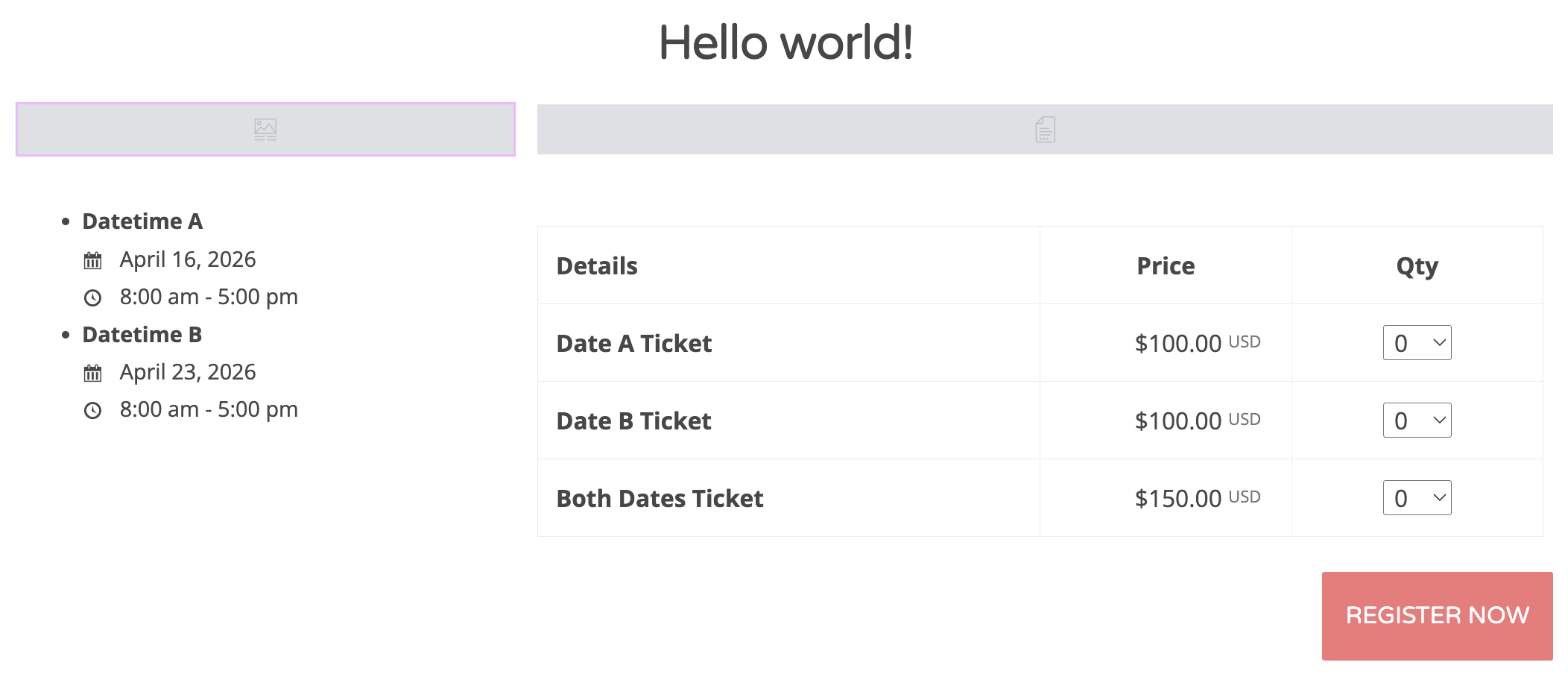
Example back-end design
Edit the Single/Archive page Templates in the Elementor > Templates menu.
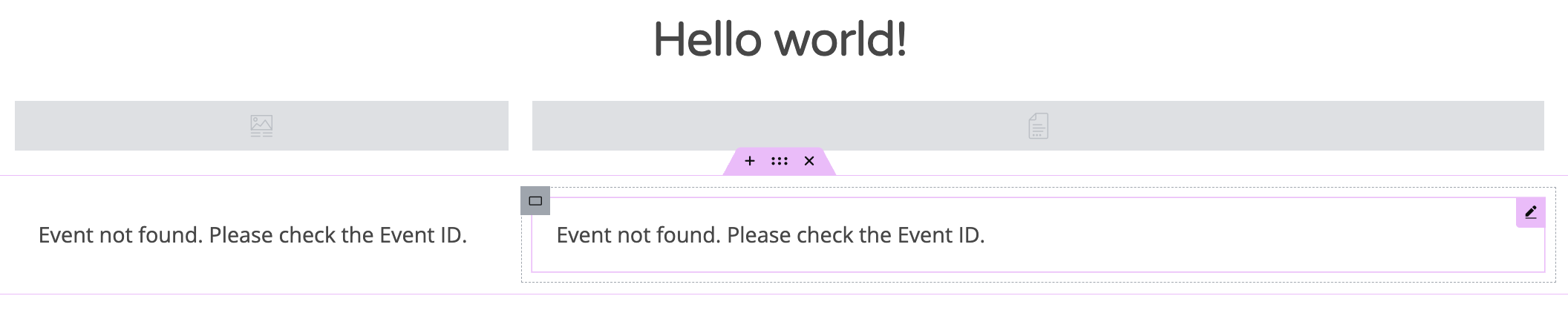
Optionally, you can set the event ID on the back-end to see the Event Espresso
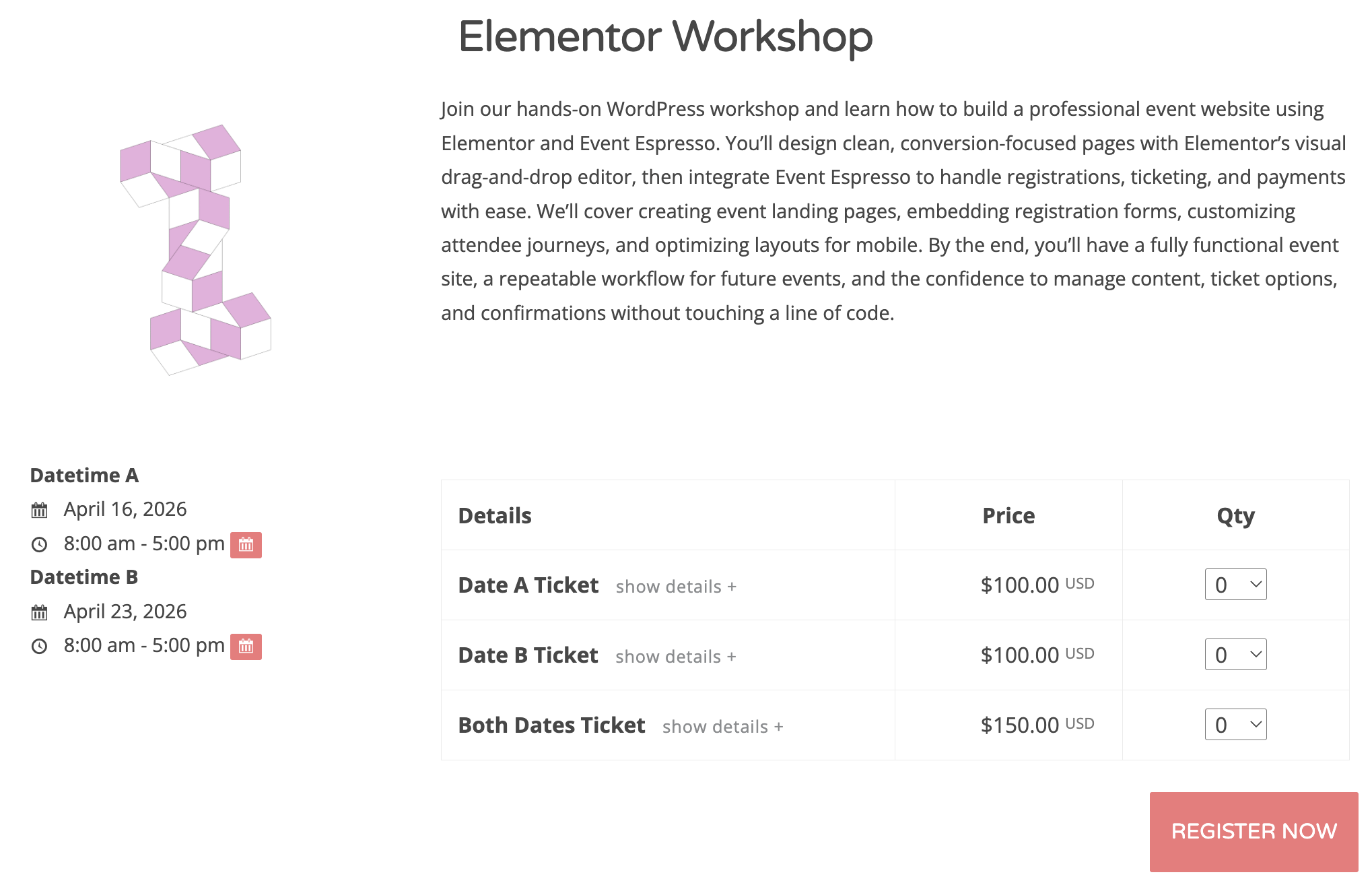
Example 1 front-end design
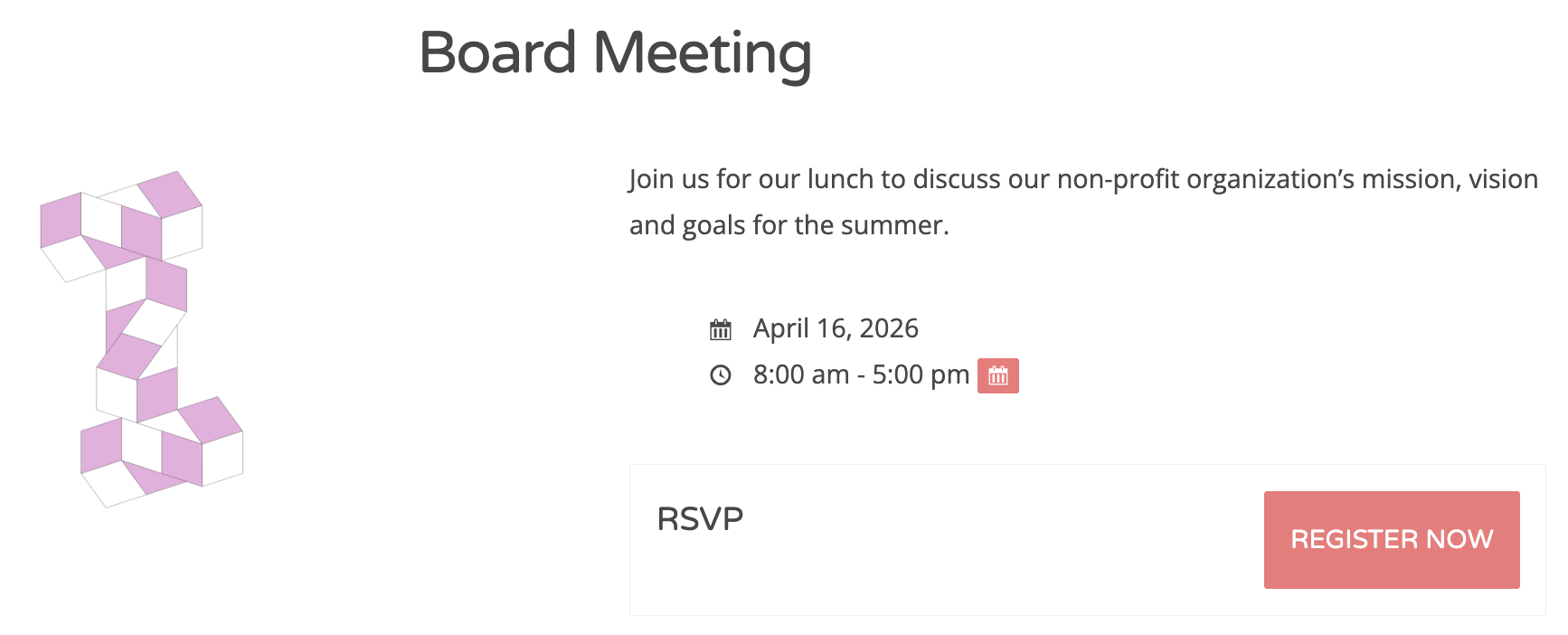
Example 2 front-end design
What this add-on does (and why you’d use it)
This add-on provides Elementor widgets that render Event Espresso output inside Elementor sections/columns/templates.
Benefits
- Build marketing/landing layouts in Elementor while showing real Event Espresso event data.
- Keep consistent design across pages using Elementor layout tools.
- Place ticket selector/dates/venue blocks exactly where you want them.
How it works (important expectation)
- Widgets render server-side (PHP) and call Event Espresso’s standard output functions.
- Interactive behavior (ticket selection, pricing logic, etc.) is provided by Event Espresso, not custom JS from this add-on.
Requirements
- WordPress: 5.8+
- PHP: 7.4+
- Elementor: installed and activated
- Elementor Pro is not required for these widgets (Pro features are optional and separate).
- Event Espresso: installed and activated
If Elementor or Event Espresso are inactive, the add-on will not load and WordPress will show an admin notice.
Installation & activation
- Install the plugin (upload the
.zipin Plugins → Add New → Upload Plugin, or use your normal deployment workflow). - Click Activate.
- Confirm Elementor and Event Espresso are active.
Updating the plugin
Update it like any WordPress plugin (your process depends on how your team distributes updates).
Deactivation/uninstall behavior (what happens to your pages)
- If you deactivate/remove the add-on, Elementor layouts that used these widgets will keep the widget placeholders/settings, but Event Espresso output will no longer render until the add-on is reactivated.
- If you uninstall permanently: removing this add-on does not delete Event Espresso data (events/venues/registrations). It only removes the widget functionality—Elementor may show “missing widget” placeholders until you remove or replace those widgets in your layouts.
Compatibility & scope details
Elementor templates / Theme Builder (advanced)
These widgets can be used inside Elementor templates, but event context matters:
- Supported/expected use: Single event views (where Event Espresso provides a “current event” context).
- Design-time gotcha: When editing templates in Elementor, there may be no current event, so leaving Event ID blank can result in no output (or editor warnings). Use an Event ID while designing.
- Not supported: Archive templates / loop-based templates where you expect the widget to automatically follow each loop item’s event (behavior may not work as expected).
Event Espresso add-ons (MER, Wait Lists, etc.)
This add-on does not add or remove support for specific Event Espresso add-ons.
- It renders the same ticket selector/content/venue output your site already uses.
- If your Event Espresso configuration/add-ons affect ticket selector behavior, you should see the same behavior when rendered via these widgets.
WordPress multisite
This guide does not make any specific guarantees about multisite/network activation.
- The add-on behaves like a standard WordPress plugin (no special multisite logic).
- In multisite environments, test in staging and ensure Elementor + Event Espresso are active on the sites where you intend to use these widgets.
Where to find the widgets in Elementor
- Open a page in Elementor (Edit with Elementor).
- Search in the widget panel for “Event Espresso”.
- You’ll see these widgets under Elementor’s General category:
- Event Espresso Ticket Selector
- Event Espresso Event Dates
- Event Espresso Event Content
- Event Espresso Venue
Choosing which event to display (Event ID vs “current event”)
Most widgets include an Event ID field.
Option A: Use the “current event” automatically
Leave Event ID blank to use the current event in context.
Where “current event” is most reliable
- On single Event Espresso event pages/views (including custom single-event templates that still render a single event).
Option B: Target a specific event anywhere
Enter an Event ID to display a specific event on any page (home page, landing page, Elementor templates, etc.).
Important note about templates
- On generic pages and many Elementor template previews, there may be no current event. In those cases, leaving Event ID blank can fail.
How to find an Event ID
Common ways (depending on your WordPress setup):
- Open the event in the WordPress admin and check the browser URL (often includes something like
post=123). - Use your Events list screen and any available “ID” column/plugin that exposes post IDs.
Tip: If a widget is blank on the frontend, open the page in Elementor editor—the add-on can show helpful warnings in the editor when it can’t find an event.
Widget reference
1) Event Espresso Ticket Selector
Displays the standard Event Espresso ticket selector for an event.
Settings
- Event ID (optional)
Notes
- Ticket options, availability, pricing, and add-on behavior are controlled by Event Espresso.
- Avoid placing multiple ticket selectors on a single page unless you have a specific UX reason—each selector can be a heavy interactive component.
2) Event Espresso Event Dates
Displays date/time information for an event.
Settings
- Event ID (optional)
- Date Format (optional): leave blank to use the site’s WordPress date format
- Time Format (optional): leave blank to use the site’s WordPress time format
- Show Expired Dates: show/hide past dates
- Limit Dates (optional): cap the number of dates displayed
3) Event Espresso Event Content
Displays the event’s content (full or excerpt).
Settings
- Event ID (optional)
- Content Type: Full Content or Excerpt
- Excerpt Length (excerpt only): number of words
- Read More Text (excerpt only): customize the “read more” link text (optional)
- Show Event Title: show/hide the event title above the content
Note, the Post Content and Event Espresso Event Content widgets are different. The Post Content widget will pull all the Event Espresso data (description, tickets, dates, etc) in all at once, while the Event Espresso Event Content widget will just pull in the description/content area..
4) Event Espresso Venue
Displays venue details from the event’s assigned venue.
Settings
- Event ID (optional)
- Show Venue Name (on/off)
- Link Venue Name To: No Link / Venue Details Page / Venue Website
- Show Description: None / Excerpt / Full Description
- Show Address (on/off)
- Address Format: Inline or Multiline
- Show Phone (on/off)
- Show Website (on/off)
- Show Map (on/off)
- Map Width (example:
100%,600px) - Map Height (example:
400px)
- Map Width (example:
Notes
- If the event has no venue assigned, the widget will not display venue output.
- For mobile responsiveness, Map Width
100%is recommended.
Styling, theming, and layout expectations
What Elementor controls vs what Event Espresso controls
- Elementor controls the layout around widgets (sections/columns, spacing, backgrounds, container styling).
- Event Espresso + your theme CSS control most typography/colors/button styles inside the ticket selector and other EE markup.
- Elementor “Style” controls typically affect the widget container, not every internal element of Event Espresso output.
Existing Event Espresso styling still applies
Any existing Event Espresso CSS settings/files you already use will still apply when the output is rendered via these widgets.
Recommended approach
- Confirm Event Espresso displays correctly on a normal event page with your theme.
- Place widgets in Elementor and use Elementor for layout/spacing.
- For deeper styling, use your theme CSS / Elementor custom CSS (if available in your setup).
Performance & caching (important for ticket selector)
- Pages containing the Ticket Selector are often best handled the same way you’d handle any Event Espresso registration flow:
- Avoid overly aggressive full-page/static caching for those pages, or configure caching to respect EE’s dynamic behavior.
- For both performance and user experience, avoid stacking many ticket selectors on the same page.
Worked examples
Example 1: “Single Event Landing Section”
- Add a 2-column section (e.g., 60/40).
- Left column:
- Event Espresso Event Content → Content Type: Excerpt (or Full), Show Title: Yes
- Event Espresso Event Dates
- Right column:
- Event Espresso Ticket Selector
- If this is not a single event page, set the same Event ID on all widgets.
Example 2: “Venue + Map below tickets”
- Add Ticket Selector.
- Add Venue widget underneath.
- Venue settings:
- Show Address: Yes (Multiline)
- Show Map: Yes
- Map Width:
100% - Map Height:
320px–480pxdepending on your design
Known limitations (important)
- Widgets display one event at a time (via Event ID or current event context).
- Widgets do not automatically bind to Elementor archive/loop items (“follow the loop”).
- The add-on does not provide:
- an “Event List / Event Grid / Query” widget
- Elementor Dynamic Tags for Event Espresso fields
Roles, permissions, and access
- Anyone who can edit the page in Elementor (per your WordPress/Elementor permissions) can insert and configure these widgets.
- This add-on does not add its own special permissions.
- Frontend visibility still depends on your normal WordPress + Event Espresso configuration (event visibility, page access rules, etc.).
Localization / multilingual note
- These widgets output the same translated strings and content your site already uses with Event Espresso.
- If you use a multilingual plugin, follow your existing Event Espresso + multilingual plugin workflow for translating events/venues; this add-on does not add separate translation controls.
Troubleshooting
“I don’t see the widgets in Elementor”
- Confirm the add-on plugin is activated.
- Confirm Elementor and Event Espresso are both active.
- Search for “Event Espresso” in the Elementor panel.
“The widget is blank”
Common causes:
- You left Event ID blank on a page/template with no “current event” context.
- Fix: enter a valid Event ID.
- The event has no venue (Venue widget only).
- Fix: assign a venue to the event in Event Espresso.
“It looks different in Elementor preview vs the frontend”
- Template previews and editor previews can differ from the live frontend due to context and style loading.
- Validate the frontend result in an incognito window, and clear caches if needed.
“Ticket selector doesn’t behave correctly (or breaks with caching)”
- Temporarily disable caching/CDN for the page and retest.
- If the issue disappears, configure caching to avoid aggressively caching pages that include the ticket selector.
“Possible plugin/theme conflict”
To isolate:
- Switch to a default theme temporarily (if possible).
- Disable all plugins except Elementor + Event Espresso + this add-on.
- Retest, then re-enable plugins one-by-one to find the conflict.
FAQ
Can one widget show multiple events?
No. Each widget renders a single event (current event context or a specific Event ID).
Can I filter events by category/tag inside these widgets?
No. This add-on does not provide an event query/listing widget.
Do I need Elementor Pro?
No. These are standard Elementor widgets; Elementor Pro features are optional and separate.
Can I still use Event Espresso shortcodes?
Yes—Elementor’s native Shortcode widget can be used alongside these widgets if you already rely on shortcodes.
Support: what to send us
When contacting support, include:
- WordPress version + PHP version
- Elementor version
- Event Espresso version
- Add-on plugin version (as shown in Plugins)
- The page URL (or the template name) and which widget(s) you’re using
- The Event ID(s) you’re targeting (if applicable)
- A screenshot of the Elementor widget settings panel
- Any browser console errors (if the issue is frontend behavior)